Call 888-654-3376
 888-654-3376
 My Account

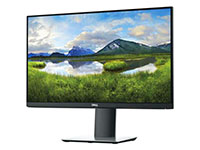

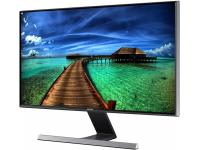
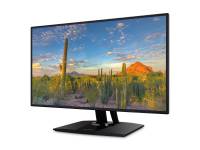
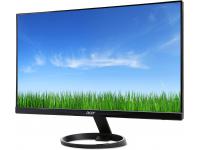





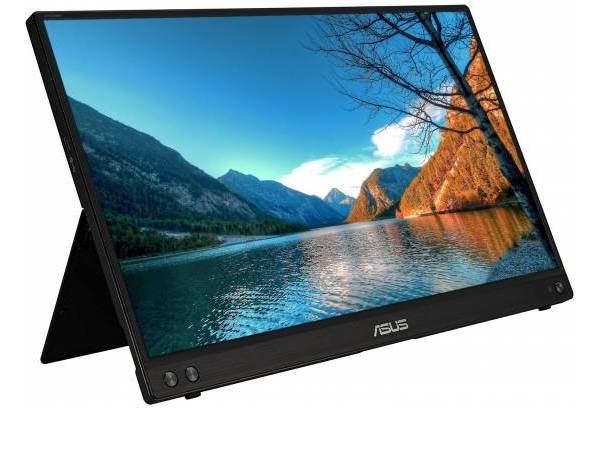
Some ASUS portable monitors include integrated speakers; many lack this feature. The exact model determines whether audio hardware is present, and this detail often remains hidden in product photos or listing descriptions.
Do not assume speaker support is included without verifying the model number. This guide covers which portable units include speakers, how to verify sound support on any item you research, and what your options are if the monitor turns out to be video-only. Start with the comparison table below for a quick model reference.
Quick-Reference Audio Comparison Table
The chart below puts the primary sound features side by side so you can compare items at a glance. It is worth bookmarking as a reference if you are shopping across multiple products or evaluating a refurbished unit without the factory box.
After the table, the next section walks through a methodical approach for confirming speaker support on any ASUS display, not just the three listed here.
|
Model |
Form Factor |
Built-In Speakers |
Battery |
Key Ports |
Best Use Case |
|
ZenScreen Touch MB16AMT |
Portable |
Yes (integrated) |
7,800 mAh |
USB-C, micro-HDMI |
Touch-enabled travel display |
|
ZenScreen Go MB16AWP |
Portable |
Yes (2x 1W embedded) |
7,800 mAh |
2x USB-C, mini-HDMI, earphone jack |
Wireless mirroring, cable-free setups |
|
ZenScreen MB27ACF |
Transportable (desk-flexible) |
Yes (2.1-channel with subwoofer) |
No battery |
USB-C (70W PD), HDMI, earphone jack |
Hot-desking, hybrid office setups |
The VT229H is a 21.5-inch touch monitor, not a travel display. The MB16AHP's speaker listing appears in the manual but receives less emphasis on the marketing overview page; cross-reference the manual for the relevant model before concluding.
How to Tell If Your ASUS Portable Monitor Has Built-In Speakers
Specification pages can be inconsistent; some versions list sound features on the marketing overview, while others hide the detail in a manual PDF. Rather than depending on a single source, a three-step approach gives you a full picture, whether you are mid-research or already have a screen on your desk.
1. Check the Model Specifications
Start with the product number, which is printed on a sticker on the back of the casing or on the retail packaging. Once you find it, search that string on the official manufacturer page or download the user manual from the support portal.
Manufacturers update online marketing materials faster than technical manuals. When a product undergoes a mid-cycle revision, the downloadable manual often retains the most precise technical data.
This makes the PDF download a dependable resource for uncovering sound hardware details. On the spec sheet, look for any mention of "speaker," "audio," "earphone jack," or wattage details such as "1W x 2."
Those terms generally indicate that audio support or speaker hardware is present. The brand lists speaker specs on the MB16AMT, MB16AWP, MB27ACF, and VT229H pages.
The MB16AHP manual includes speaker specs even when the product overview is vague; pull up the manual if the marketing page leaves any doubt. Run through this brief checklist before moving on to the next step:
- Model number located and confirmed?
- Speaker or sound line visible on the spec sheet?
- Audio-out or earphone jack listed?
- Manual reviewed if the marketing page is unclear?
This process takes about two minutes and eliminates a majority of the guesswork. Once the spec sheet verifies or rules out speaker hardware, your computer provides a second layer of confirmation.
2. Look for Audio Settings
Your operating system dictates whether the display is recognized as an audio output device; this adds context on top of what the spec sheet says. On Windows, open Settings > System > Sound and check whether the connected screen appears as a selectable output choice.
If it does not appear, the cause could be an incorrect playback selection, a disabled component in sound settings, or a driver issue. Microsoft guidelines recommend enabling the equipment in the Sound control panel if it fails to surface by default.
On a Mac, go to System Settings > Sound > Output and check whether the monitor appears as a sound destination. Apple states that audio routes to a display's speakers when the hardware supports them.
One crucial note: if the monitor fails to appear as an output option after connecting, do not write it off as speaker-free. The connection type matters for this evaluation.
A USB-C cable that carries only video will not pass audio; you need a cable with full-function support. A driver update might also resolve the problem, so check both before concluding.
3. Check the Monitor's Ports and Controls
A widespread misconception merits addressing: HDMI and USB-C carry audio signals, but the presence of those ports alone fails to confirm the monitor has internal speakers. Those inputs verify audio pass-through capability, which is a separate feature.
A 3.5mm earphone jack is a better clue. If a model includes one, audio pass-through is supported in numerous scenarios.
That said, an earphone jack cannot guarantee internal speakers exist, so the spec sheet check remains the final step. Once the spec sheet has established speaker hardware, the on-screen display (OSD) serves as a good place to verify; look for volume or mute controls in the menu.
Avoid using the OSD as a first check. Audio pass-through settings show up there even on screens lacking internal speakers, which makes it an unreliable solo indicator.
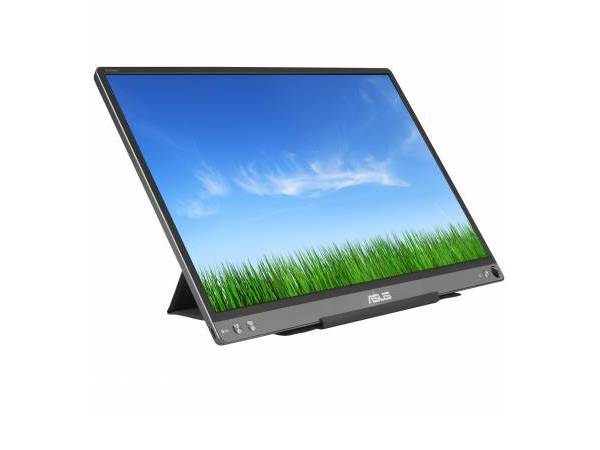
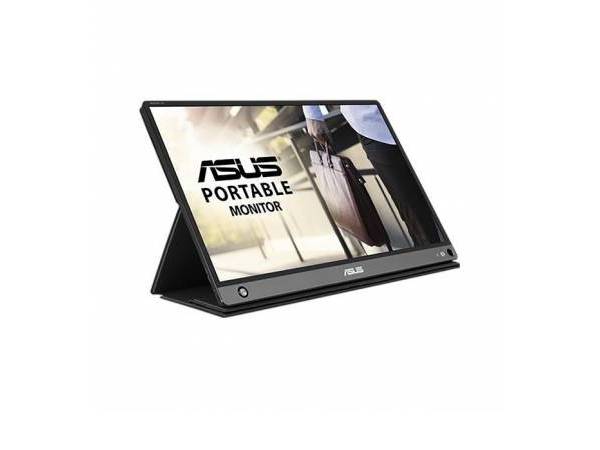
Upgrade your workspace with a reliable ASUS monitor that delivers exceptional clarity and performance without breaking the bank. Whether you're a creative professional, a business multitasker, or just need a dependable second screen, these refurbished ASUS monitors provide premium features at up to 60% off retail, backed by PCLiquidations' 1-year warranty and 24,000+ five-star reviews.
|
ASUS ZenScreen™ MB16AC |
ASUS ZenScreen MB16ACE |
ASUS ZenScreen MB16AHP |
|
|
|
|
|
|
|
|
★★★★★ |
★★★★★ |
★★★★★ |
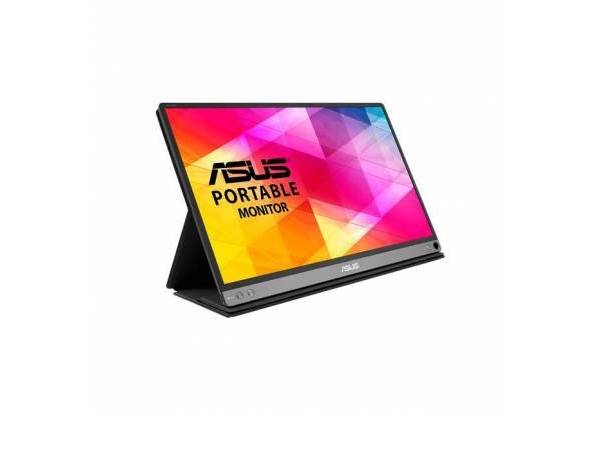
What to Do If Your ASUS Portable Monitor Does Not Have Speakers
Many thin, travel-ready displays omit internal speakers by design. Keeping the chassis slim and extending battery life represents a deliberate trade-off, and most professional users never notice it in day-to-day work.
You have three workable audio options to choose from, and the correct path depends on your environment and workflow. The easiest option requires zero extra hardware.
Use Your Laptop or Desktop Speakers
Keep the secondary screen as a strict video display and route audio through your computer's native speakers instead. On Windows, select the computer's internal speakers as the active output device under Settings > System > Sound.
On a Mac, do the same under System Settings > Sound > Output. The change takes seconds and costs nothing.
For SMB owners and IT managers, this configuration handles routine workflows without added accessories; spreadsheets, presentations, dual-screen productivity, and video calls in a quiet office all function fine with laptop speakers handling the audio side. It is a no-friction solution that covers basic situations.
For louder environments or higher-demand use cases, the next option delivers expanded capabilities.
Connect External Speakers or Headphones
Wired audio is the go-to for offices where call clarity and sound fidelity matter. There are two connection paths, depending on your display's configuration.
Here are the primary options to consider:
- If the monitor includes an earphone jack, it supports audio-out from the connected device; plug headphones or compact speakers into the unit.
- If the monitor is video-only, connect wired audio to the laptop, dock, or mini PC without involving the extra screen at all.
For desk-based roles, call-heavy work, and users who care about audio fidelity, standalone external speakers are the smarter long-term investment. Even a modest pair of desktop speakers outperforms any internal speaker at a comparable price point; the physics of a slim chassis oppose full-range audio reproduction.
Desktop environments benefit from powered bookshelf speakers or standalone soundbars. To compare speaker options, browse our webcams and speakers. These units draw power from a separate wall outlet, which leaves the display's power delivery system unburdened.
This configuration ensures maximum brightness on the screen while delivering rich sound through the room.
Use Bluetooth Audio Devices
For hybrid workers and anyone who wants fewer cables on their desk, Bluetooth audio is the natural fit. Pair a wireless headset or speaker with your computer, then set it as the active audio output.
On Windows, open Settings > System > Sound and select the Bluetooth peripheral after pairing. On a Mac, choose it under System Settings > Sound > Output once the link is established.
One caveat merits attention: Bluetooth audio requires more than a successful pairing. If no sound plays after connecting, check that the wireless device is the selected audio destination; peripherals can pair without the system switching output to them on its own.
Here is a fast breakdown of which audio approach fits each situation:
- Built-in speakers: Suited for travel and minimal setup
- Wired audio: Geared for desk use, call quality, and consistency
- Bluetooth audio: Designed for hybrid work and cable-free flexibility
Find Affordable Portable Monitors and Computer Displays at PCLiquidations
Now that you know how to evaluate a monitor by speaker support, port configuration, and form factor, the next step involves finding one that fits both your requirements and budget. PCLiquidations has helped businesses make well-informed equipment decisions since 1991.
With a 5-star rating across more than 15,000 reviews, the track record speaks for itself. The monitor inventory spans professional displays from 17 to 27+ inches, priced 30%-60% below retail.
Every unit is refurbished by certified technicians, graded on a transparent A/B/C condition scale, and backed by a 1-year warranty. There are no restocking fees if something fails to meet your expectations, and pricing is fixed; no bidding, no surprises, no last-second auction losses to a competing buyer.
PCLiquidations reinforces that commitment through certified computer and electronics recyclingand ITAD services for businesses retiring older equipment.
Browse our computer monitors inventory with your checklist in hand: screen size, speaker support, port compatibility, and condition grade. If you are sourcing displays in bulk or need guidance on a business-specific configuration, the PCLiquidations team is available to help.