Call 888-654-3376
 888-654-3376
 My Account









The answer is yes: a wireless keyboard and laptop pair without complicated steps. Finding the right wireless keyboard for your budget means evaluating several factors and product options to ensure reliable performance.
Device compatibility is not automatic, no matter what you plug in or switch on. Whether a typing tool and a computer work together depends on the link type the peripheral uses, alongside the hardware your machine offers.
This guide reviews how macOS and Windows handle wireless connectivity, details a hardware check, and explores what to do when a wireless keyboard fails to sync. Consider whether you are building a versatile desktop setup, replacing a wired keyboard, or creating a workspace utilizing multiple phones and a tablet.
Understanding these technical features saves time and boosts daily productivity. A durable mechanical keyboard or a specialized gaming keyboard enhances regular typing, tablet use, and gaming tasks.
The Main Types of Bluetooth Keyboard and Mouse Synchronization

Every cordless option falls into two broad categories: Bluetooth devices or USB receiver choices. The chosen wired connection or wireless standard determines what hardware options your machine needs, how system configuration works, and where protocol problems surface.
Establishing this sync distinction makes the installation smooth. Before considering a specialized keyboard and mouse combo or a basic wireless combo, identify which connectivity setup your chosen options leverage.
A traditional wired setup reduces delay, while cordless peripherals offer unmatched desktop mobility. Both operating systems, such as macOS and Windows, accommodate varied approaches without friction.
|
Feature |
Bluetooth Keyboard |
USB-Receiver Keyboard |
|
Connection method |
Computer's internal Bluetooth radio |
2.4 GHz USB adapter |
|
What the computer needs |
Bluetooth 4.0 or later enabled |
Available USB-A port or USB-C adapter |
|
Setup method |
Pair through OS settings |
Insert receiver |
|
Best use case |
Clean desk, thin chassis, multi-device usage |
Fast setup, no internal radio required |
|
Common issues |
Handshake drops, driver conflicts, power off |
Lost dongle, mismatched hub, missing adapter |
|
Key Insight: Bluetooth keyboards offer dongle‑free convenience and multi‑device pairing, but require OS‑level Bluetooth and up‑to‑date drivers. USB‑receiver keyboards work instantly but need an accessible USB‑A port; a missing dongle means the whole keyboard becomes unusable. |
Bluetooth Wireless Keyboards

Bluetooth keyboards sync through a built-in chassis radio; no external wireless dongle is necessary. To initiate contact, the peripheral must enter discovery mode while the machine searches for active Bluetooth connections.
A valuable checkpoint involves the manufacturer's specifications, since some recent options require Bluetooth 5.0 for peak speed and enhanced range. Microsoft mandates current wireless standards for its lineup on supported Windows and Mac systems.
Checking inside device menus confirms whether your internal module handles that protocol. Taking this step before assuming a brand-new Bluetooth keyboard is defective remains a smart move.
The pros of selecting a Bluetooth model are notable. There is no USB dongle to misplace, which keeps your workstation organized and computer surfaces uncluttered.
Many fresh units support multi-device environments, letting you switch among assorted phones, a Mac, and an Android tablet. This allows users to juggle iOS and Android platforms without needing to configure a link from scratch.
A few notable cons demand attention before abandoning a standard USB connection. The link must be maintained at the OS level, meaning a drained battery stops communication.
Some layouts rely on an internal rechargeable battery offering long battery life on a single charge, while others use replaceable batteries. Replaceable batteries ensure you can swap power sources. Regardless if the component is rechargeable or utilizes replaceable cells, maintaining adequate power avoids dropping the keyboard and mouse combo signal.
This approach eliminates clutter on compact desks. A neat appearance appeals to professionals organizing a minimalist office layout.
Travelers appreciate leaving adapters behind during transit. Reducing packed electronics minimizes the risk of losing vital hardware accessories on the road.
2.4 GHz Wireless USB Receiver Keyboards

Alt: A cozy desk setup with laptop, coffee, and notebook.
These compact units bypass internal syncing protocols. Instead, they leverage a 2.4 GHz wireless adapter, often called a wireless dongle, that plugs into the frame.
This forms a dedicated path offering excellent speed and responsive interactions. No system menu pairing is required; the device and adapter are matched during manufacturing to communicate the moment the plug seats in the port.
The only physical requirement is an available standard input or a modern usb c port. Thin laptops can create friction here since numerous models provide limited input options.
A designated module might become mandatory to bridge that gap. Tech brands advise inserting the adapter straight into the chassis for optimal typing responsiveness. Avoid using a generic usb c dock here.
Hubs can disrupt a 2.4 GHz signal, leading to lag. This interference happens when hubs lack output voltage or if other high-bandwidth electronics share the pathway.
Losing the component means the device quits functioning because numerous dongles lack interchangeability between brands. Substituting another adapter from the same maker seldom restores the original tie.
Instruments pre-paired to a specific adapter are prevalent in a wireless keyboard and mouse kit, meaning both accessories share one plug. Storing this component in its transport slot shields your best wireless keyboard from becoming unusable.
Security-conscious environments prefer this localized communication track. IT departments value closed-loop equipment guarding against remote signal interception.
Plug-and-play installation minimizes help desk support tickets for mundane connectivity issues. Staff members jump into assignments sooner when basic tools operate on first contact.
How to Check if Your Laptop Is Compatible with a Gaming Keyboard
Most syncing concerns surface if you run targeted checks before assuming a component failed. Think of this process as a pre-flight FAQ checklist; it resolves mysteries backward and forward.
The troubleshooting workflow starts with reviewing available inputs. Answering these test questions eliminates major failure points:
- Bluetooth present? Open Device Manager on Windows or System Information on a Mac to spot an internal Bluetooth adapter. If none appears, a budget wireless unit adds support to older chassis machines.
- USB-A or USB-C port available? Confirm at least one interface remains unoccupied, or determine whether a dock accommodates your adapter.
- Bluetooth enabled and drivers current? Verify the radio is toggled active in OS settings, then guarantee the underlying software reflects the current version. An overlooked update presents an obstacle resembling hardware failure.
- Keyboard powered and in pairing mode? Measure the battery life or charge status, making certain the batteries retain energy. Ensure the tool rests in discovery mode prior to determining that the laptop is at fault.
Older typing gadgets execute functions on contemporary computers if the underlying technology aligns; age rarely disqualifies a keyboard combo. For Bluetooth variations, confirming the supported specification takes seconds and yields clarity.
|
Pro Tip: Run four quick checks before troubleshooting: Bluetooth adapter present, USB‑A port free, OS Bluetooth and drivers updated, keyboard powered and in pairing mode. This pre‑flight avoids unnecessary driver reinstalls. |
When a Wireless Keyboard May Not Work with a Laptop
While rare, connection issues usually stem from three scenarios.
First, very old laptops might lack an internal Bluetooth card, but a simple USB Bluetooth adapter easily solves this.
Second, modern ultra-thin laptops that only have USB-C ports may require a simple USB-C to USB-A adapter for RF keyboards.
Third, driver conflicts can occasionally occur, though a quick system update typically resolves this.
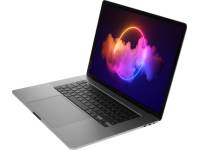
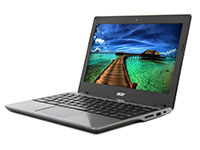
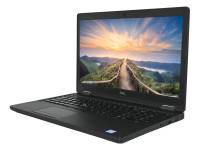
By choosing a reliable, professionally refurbished business laptop from PCLiquidations, you eliminate hardware guesswork with tested components and fresh Windows 11 installations.
All three of these professionally refurbished laptops work perfectly with any Bluetooth or USB wireless keyboard, ensuring a cable-free, productive workspace right out of the box.
|
#1 The Do-it-all Engine |
#2 The Touchscreen Powerhouse |
#3 The Budget-Friendly Pro |
|
|
|
|
|
★★★★★ |
★★★★★ |
★★★★★ |
|
Dell Latitude 3510 15.6"
|
Lenovo ThinkBook 14 G2
|
HP ProBook 440 G8
|
|
$439.99 |
$559.99 |
$383.97 |


Each of these refurbished laptops is backed by over 18,000+ 5-Star Reviews and comes with a 30-day free return policy and a 1-Year Warranty, guaranteeing a reliable, wireless-ready workstation.
Find the Best Laptops Compatible with a Multi-Device Wireless Keyboard at PCLiquidations
Knowing what specifications to seek in a flexible computer simplifies the purchasing process. A dependable machine mandates an integrated Bluetooth module capable of handling a modern gaming keyboard or a classic mechanical keyboard, alongside accessible inputs, fresh drivers, and excellent construction.
Business-grade computers from distinguished labels check these requirements. This enduring resilience is where PCLiquidations anchors its substantial inventory.
The selection covers Dell Latitude, HP EliteBook, and Lenovo ThinkPad lines; systems crafted with steadfast architecture and abundant port configurations to support any robust gaming keyboard. Every unit undergoes inspection and repair prior to leaving the warehouse.
With pricing scaling below standard retail, the value defies comparison against consumer channels. PCLiquidations abides by R2-certified methods; this protocol lengthens hardware lifespans and stops dangerous electronic waste from accumulating in landfills.
This initiative yields substantial ecological pros, complementing the financial benefits. For IT directors navigating corporate deployments, the setup gets easier: match target OS needs and pick the appropriate monitor dimensions.
Once the primary workstation is finalized, shoppers can browse specialized monitors, a wireless keyboard and mouse, and corresponding mounts to conclude the design. All supplementary parts offer baseline guarantees for robust deployment.
Evaluate refurbished choices at PCLiquidations to access commercial-grade capability without the premium cost tag. Shoppers command powerful networking equipment aligned with specialized workflow criteria.
Companies scaling up their workforce derive immense benefit from uniform IT standards. Sourcing matched equipment bundles such as an identical keyboard and mouse combo for every desk assures predictable maintenance schedules in the future.
Individual buyers secure enterprise-level utility scaled for personal ambitions. Home workspaces gain the same endurance engineered for corporate environments, whether you enjoy gaming or focus on compiling reports.