Call 888-654-3376

 888-654-3376
 My Account










|
|
|
|
|
|


Photo from PCLiquidations.com Instagram
A computer is necessary for many activities, including research, work, communication, and entertainment. In fact, half of private households around the world own personal computers[g]. While consumers can use a desktop computer or a laptop, most prefer the latter because of its efficiency and portability.
Here is the challenge. Find a laptop that delivers high performance without breaking the bank. High-end laptops are often expensive, so not everyone can afford them. However, it's also important for buyers to maximize the value of their investment.
People with limited resources can benefit from a budget-friendly laptop that provides affordability, accessibility, portability, and their preferred specifications.
The question is, where to start?
Finding a pocket-friendly laptop under $500 can be overwhelming, but not impossible. Buyers must simply take note of some factors to consider before giving the green light on a particular device.
In this guide, individuals, students, employees, and business owners will discover budget-friendly laptop options and tips for choosing the right one. They will also be able to learn techniques to use their laptop to their fullest potential.
Top Laptops Under $500: Key Features and Specifications
When it comes to budget laptops, there are numerous options available. But we’ve narrowed it down to the five most popular ones in the market.
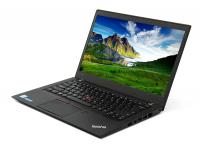
Acer Spin 5 N17W2
The Acer Spin 5 N17W2 is a flexible 13.3-inch 2-in-1 touchscreen laptop featuring the Intel Core i5-8265U processor, designed to adapt effortlessly between laptop, tablet, tent, and display modes for diverse work and entertainment needs.
Its lightweight, compact build ensures portability and responsiveness, making it an ideal choice for users with dynamic lifestyles. This model is available for $424.96, offering solid performance and versatility at an attractive price point.
Below is a quick at-a-glance view of its key specifications and the features you can expect in this value-focused range:

Below are the pros and cons of the Acer Spin 5 N17W2 Laptop:
|
Pros |
Cons |
|
Reliable quad-core Intel i5 processor for smooth multitasking |
Integrated Intel UHD Graphics 620 limits performance with graphics-intensive applications and gaming |
|
Fast 256GB SSD for quick storage access |
Battery warranty only lasts 90 days, which might be short compared to the overall laptop warranty |
|
Comfortable keyboard for extended use |
No dedicated fingerprint scanner for biometric security |
|
Pen-enabled touchscreen with high-pressure sensitivity |
Limited port selection with no VGA, DisplayPort, or additional video output options beyond HDMI |
|
Energy-efficient with good battery life |
The maximum memory upgrade capability is unspecified, potentially limiting future expansion |
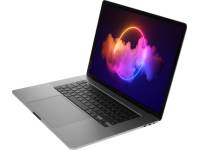
Apple MacBook Pro A2141 16" Laptop
The 16-inch MacBook Pro features a high-resolution Retina display alongside professional-grade hardware designed to handle resource-intensive workflows, including content creation and demanding applications. Its powerful processor, advanced graphics capabilities, and 512GB solid-state drive work together to deliver fast performance and quick file access, with the device priced at $465.40.
Take a closer look at the technical specifications that make the Apple MacBook Pro A2141 a solid choice for daily computing tasks:

Here are the pros and cons of the Apple MacBook Pro A2141 16" i7-9750H 16GB DDR4 512GB SSD (2019) Space Gray - Grade B Laptop:
|
Pros |
Cons |
|
Upgraded Magic Keyboard with a physical Escape key, replacing the problematic butterfly keyboard for better reliability and typing comfort |
No traditional USB-A or SD card slots, requiring adapters for many peripherals |
|
Six-speaker audio system with force-canceling woofers for immersive, rich sound quality |
Heavier than typical MacBooks at around 4.3 lbs, reducing portability for some users |
|
High color accuracy with P3 wide color gamut and True Tone technology in the Retina display |
Expensive compared to other laptops in the same category, especially with upgrade options |
|
macOS is upgradable to the latest versions, like macOS Sonoma, ensuring continued software support and features |
Tends to throttle and slow down under sustained heavy workloads due to heat management limitations |
|
Strong build quality with a premium aluminum chassis offering durability beyond aesthetics |
Battery life of up to 11 hours is reduced significantly under intensive tasks like video editing or gaming |
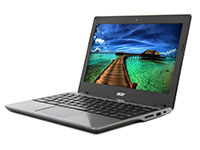
ASUS Chromebook CX1
The ASUS Chromebook CX1 features a 14-inch Full HD screen and an Intel Celeron N4500 processor that handles daily computing tasks and multitasking efficiently. Its compact, lightweight build suits mobile users such as students and working professionals, while the display provides clear visuals for streaming, web browsing, and general productivity at $333.84.
Here's a detailed look at the hardware specifications and features that power the ASUS Chromebook CX1 for everyday productivity:

Discover what makes the ASUS Chromebook CX1 laptop shine and where it falls short:
|
Pros |
Cons |
|
Lightweight and portable for easy carrying |
Limited storage capacity (64GB or 128GB eMMC) |
|
Affordable price, good value for budget users |
4GB RAM may struggle with heavy multitasking |
|
Long battery life, suitable for all-day use |
No touchscreen on the non-flip model |
|
Solid performance for everyday tasks like browsing and media streaming |
Display brightness and viewing angles are average |
|
Durable with MIL-STD-810G certification (shock, vibration tested) |
The processor is not suitable for demanding tasks or extensive multitasking |
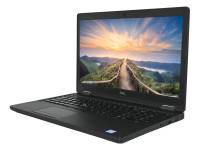
Dell Latitude 3510 Laptop
The Dell Latitude 3510 laptop features a 15.6-inch display and an Intel Core i5-10210U processor designed to handle multitasking and everyday computing tasks, available at $439.99.
Its Non-Volatile Memory Express (NVMe) storage technology operates through a PCIe interface that enables direct communication with the computer's processor, delivering faster data transfer rates compared to traditional SATA drives that face hardware-based speed limitations.
Let's break down the hardware and connectivity features that define this laptop's performance:

Overall, it presents a solid choice for budget-conscious buyers needing a reliable, everyday-use laptop without premium features. Check out the benefits and drawbacks of the Dell Latitude 3510 laptop:
|
Pros |
Cons |
|
Good battery life despite having a relatively small battery capacity |
Display brightness is low (around 230-260 nits), making outdoor use challenging |
|
Solid build quality for its price point, suitable for business use |
Screen flickers at 250 Hz PWM frequency, potentially causing eye strain for sensitive users |
|
Wide viewing angles thanks to its IPS display panel |
Color accuracy and coverage are limited, not ideal for color-critical work |
|
Multiple connectivity options, including USB-C with DisplayPort support |
Relatively heavy and bulky compared to ultrabooks |
|
Upgradeable RAM and storage for extended lifespan |
Integrated Intel UHD Graphics may struggle with graphics-intensive applications |
Factors to Consider When Choosing a Laptop Under $500
While price is a crucial determining factor when choosing a laptop, it should not be the only one. There are many things to consider to get the most out of one’s purchase. Before hitting the store, buyers should take note of the following aspects:
Performance and Processing Power
|
|
Processors like AMD Ryzen 5 or Intel Core i5 from recent generations offer good multitasking and speed for everyday tasks while staying budget-friendly. Aim for at least 8 GB of RAM to ensure smooth multitasking and better performance with heavier applications. |

Display Quality and Resolution
|
|
A Full HD resolution (1920 x 1080 pixels) is the preferred minimum for clear, sharp images and comfortable viewing space compared to the lower 1366 x 768 resolutions common in cheaper models[r]. IPS panels are ideal as they offer better color reproduction and wider viewing angles than TN panels, often found in budget laptops. |

Battery Life
|
|
Look for models offering 8 to 10 hours of real-world usage per charge. Battery capacity around 40 to 50 Wh is common in budget laptops, balancing size, weight, and endurance. Power management features and component efficiency also affect battery duration. |

Storage Capacity
|
|
To ensure faster application loading, it is best to choose a laptop with a solid-state drive (SSD) instead of a traditional hard disk drive (HDD) storage. SSDs are much faster when it comes to boot times compared to their outdated counterpart. |

Operating System and Software Compatibility
|
|
The three most common options are Windows, macOS, and Linux. Windows is widely supported and has a vast range of software available. To ensure software compatibility, users should first determine the specific software they need and check whether it is compatible with the OS they choose. |

Laptops are meant to be used on the go, so it is important to consider the build quality and weight before buying. While budget laptops may not match the premium build materials of more expensive options, it is still important to choose one that feels durable and well-constructed for longevity.
Recommendations for Different User Types
Understanding and addressing the diverse needs of various users is paramount for delivering effective and satisfying experiences.
This document meticulously outlines tailored recommendations specifically designed to optimize engagement and performance across distinct user profiles. Implementing these specialized strategies will ensure that every segment of the user base receives maximally relevant and actionable guidance.
Best Laptop for Students
The Apple MacBook Air A1465 is good for students because it is lightweight, portable, and has a sleek, durable design that makes it easy to carry throughout the day. It offers a long battery life, allowing students to use it for extended periods without needing to recharge, which is ideal for classes or study sessions.
Below are the key specifications and features of MacBook Air A1465:
|
|
|

Additional benefits for students include the responsive backlit keyboard, high-quality multi-touch trackpad, FaceTime HD webcam for online classes, and multiple ports like USB 3.0 and Thunderbolt for connectivity with various peripherals.
Although it lacks a Retina display and the RAM cannot be upgraded post-purchase, its price point and performance make it a practical choice for students who need a reliable and efficient laptop for everyday use without heavy graphics or specialized software demands.
Best Laptop for Professionals
The HP EliteBook x360 1040 G8 is best for professionals because it combines powerful 11th Gen Intel Core i7 performance with a versatile 14-inch 2-in-1 touchscreen design, enabling flexibility for various work modes like laptop or tablet.
It offers robust security features, including HP Sure View Reflect privacy screen, hardware encryption, and biometric protection, ensuring enterprise-level data safety.
Here are the key features of the HP EliteBook x360 1040 G8 laptop:
|
|
|

In addition to its powerful performance and versatile 2-in-1 design, it features enterprise-grade security such as HP Sure View Reflect privacy screen, hardware-enforced malware protection, biometric authentication with fingerprint and facial recognition, and a physical webcam shutter for privacy.
The laptop supports fast, reliable connectivity options, including optional 5G wireless, Wi-Fi 6, and multiple Thunderbolt ports. Its long battery life with fast charging plus a spill-resistant backlit keyboard enhances productivity for on-the-go users.
Best Laptop for Creative Work
The Lenovo 500e 2nd Gen Chromebook is ideal for creative work because its versatile 360-degree hinge and 11.6" HD touchscreen with an included pressure-sensitive EMR pen allow users to easily switch between laptop and tablet modes for intuitive drawing, note-taking, and design.
|
|
|

Additionally, its Intel Celeron processor combined with Chrome OS supports smooth multitasking and access to a wide range of creative apps, making it a flexible and efficient tool for students and professionals alike.
Tips for Getting the Most Out of a Budget Laptop
Opting for budget laptops does not mean one has to settle for compromised quality. No matter the price, a laptop should be able to provide all the necessary features a user needs. The following device optimization tips will help them get the most bang for their buck.
Optimizing Performance
Here’s what to do:
Keep the operating system and software updated
Regularly updating the laptop’s operating system and software installs the latest bug fixes, security patches, and performance improvements. This helps optimize performance and ensures compatibility with the latest applications.
Minimize startup programs
Programs that automatically launch when a laptop is turned on slow down its system resources. It’s best to disable them to improve startup time.
Manage background processes
Monitor and close unnecessary background processes and applications running in the background. This frees up system resources and enhances performance.
Perform regular maintenance
Users need to regularly perform system maintenance tasks, such as disk cleanup, defragmentation (for HDDs), and disk error checking. This helps optimize storage utilization and maintain system performance.
Managing Storage
To keep the device running efficiently, it's important to manage storage space effectively. Here are key strategies to follow:
- Remove unnecessary files and applications. It’s essential to regularly clean up storage by removing unnecessary files, applications, and temporary files. This helps free up space and ensures smooth storage performance.
- Utilize cloud storage and external drives. This helps offload files and create additional storage space on the device.
- Organize and optimize file storage. Creating organized folders and directories helps manage files efficiently. Cleaning up clutter on the desktop and deleting large files on the system drive also helps maintain optimal storage performance.
Enhancing Battery Life
A device's battery performance depends on how a user configures and uses their system settings. Consider these practical approaches to extend battery life:
- Adjust power settings. Customizing a laptop's power settings balances its performance and battery life. Some helpful tips include lowering the screen brightness, adjusting sleep and display timeout settings, and managing background processes to conserve battery power.
- Disable unnecessary features. This includes turning off Bluetooth, Wi-Fi, and other connectivity options when not in use. Also, disabling unnecessary background apps and services helps save battery power.
- Opt for battery-saving modes. It’s helpful to utilize the battery-saving modes provided by the OS to maximize battery life. These modes often reduce system performance but extend battery endurance.
Ensuring Security and Privacy
Follow these essential practices to safeguard information:
- Use antivirus and antimalware software. Installing and regularly updating reliable antivirus and antimalware software protects a device from common cybersecurity threats.
- Enable automatic updates. It’s best to receive automatic updates on the OS or security system to patch vulnerabilities promptly.
- Strong passwords and encryption. Implementing strong passwords for user accounts and enabling full-disk encryption helps protect one’s data in case of theft or unauthorized access.
- Be cautious online. To prevent malware infections and privacy breaches, users need to practice safe browsing habits, avoid suspicious websites, and be cautious when downloading files or clicking on links.
By following these tips, users can make full use of their computers, optimizing their performance, storage, battery life, and security.
Case Study in Extreme Cost Optimization: The OLPC XO Laptop
The One Laptop per Child (OLPC) initiative and its flagship XO laptop (initially the XO-1) serve as a critical case study in the manufacturing and design limitations of the ultra-affordable computing segment.
The project’s central objective was to develop a fully functional, educational-focused laptop for children in developing countries with an initial cost target of just $100.
This objective required revolutionary engineering and supply chain choices, providing valuable context for analyzing modern laptops priced under $500.
Key Design and Cost Constraints
The design of the XO laptop was governed by three non-negotiable constraints, all directly relevant to budget computing:
- Extreme Affordability: The pursuit of the $100 price point forced the team to rethink every component, material, and manufacturing process, showcasing how cost dictates hardware choices.
- Durability and Environmental Tolerance: Unlike standard consumer laptops, the XO was designed to withstand harsh, uncontrolled educational environments, including dust, high humidity, and physical impacts, demonstrating the required ruggedization for low-cost devices intended for heavy, non-office use.
- Minimal Power Consumption: Since reliable electricity was not guaranteed, the device was engineered for extremely low power draw, featuring charging flexibility (e.g., hand-crank capability) and a high-efficiency power management system.
Technical Innovations for Cost Reduction
To meet the strict cost and power requirements, the XO-1 implemented several hardware innovations that differentiate it from mainstream commercial devices:
Custom Low-Power Display
The laptop utilized a unique trans-reflective LCD screen. This display technology could switch between a standard color display (requiring backlighting) and a low-power, high-contrast monochrome mode that was fully visible in direct sunlight, eliminating the need for high-powered, energy-intensive backlights typical of conventional screens.
Minimalist Software Stack
The device relied on the custom, open-source Sugar operating system. By eliminating the resource demands of heavy commercial operating systems, the laptop could function effectively using significantly less expensive, lower-spec processors, smaller amounts of RAM, and reduced flash storage.
Integrated Communication
The laptops featured integrated mesh-networking capability, allowing them to connect and share internet access or resources among themselves without relying on extensive traditional infrastructure, showcasing innovative ways to add utility while avoiding complex networking hardware costs.
The OLPC XO project ultimately demonstrated that achieving extreme affordability in laptops is possible by prioritizing contextual needs (durability, power efficiency) over raw performance metrics.
This effort sets a benchmark for what can be achieved when manufacturers commit to optimizing every dollar of the Bill of Materials.
Let the Hunt for a Cost-Friendly Laptop Begin
Finding an affordable yet efficient laptop under $500 may sound like a tumultuous task, but with the right guidance, it is easy to spot one that fits one’s budget and needs.
While they tick all the boxes we look for in terms of price, performance, and aesthetics, it is still advisable to evaluate one’s specific needs and preferences to make the best decision.
References
Christine Sandella. (2023, May 3). Protect Yourself Online with Safe Browsing Habits. Seton Hall University. https://www.shu.edu/technology/news/safe-browsing-habits.cfm
Cocca, G. (2022, April 12). Windows vs MacOS vs Linux – Operating System Handbook. freeCodeCamp. https://www.freecodecamp.org/news/an-introduction-to-operating-systems/
Computer usage and national energy consumption: Results from a field-metering study. (n.d.). Lawrence Berkeley National Laboratory. https://eta-publications.lbl.gov/sites/default/files/computers_lbnl_report_v4.pdf
H. K. Ramapriyan. (n.d.). Evolution of Archival Storage (from tape to memory). NASA Technical Reports Server. https://ntrs.nasa.gov/api/citations/20150006826/downloads/20150006826.pdf
Lagace, M., & Blanding, M. (2007, December 10). One Laptop per Child | Working Knowledge. Baker Library. https://www.library.hbs.edu/working-knowledge/one-laptop-per-child
Laptop Requirements | INFORMATION TECHNOLOGY. (n.d.). University of Denver. https://www.du.edu/it/support/how-to/students/laptops
Processor Guide | Information Systems & Computing. (n.d.). Penn ISC. https://isc.upenn.edu/resources/processor-guide
What are non-volatile memories and solid-state drives? – Department of Atmospheric Sciences. (n.d.). SOEST Hawaii. https://www.soest.hawaii.edu/atmo/index.php/knowledgebase/what-are-non-volatile-memories-and-solid-state-drives/